Python Editor
PyScript includes a built-in code editor for creating interactive Python coding environments in web pages. Based on CodeMirror, the editor provides syntax highlighting, a run button, and the ability to edit and execute code directly in the browser.
This guide explains how to use the Python editor for tutorials, demonstrations, and interactive coding experiences.
Warning
The Python editor is under active development. Future versions may include refinements and changes based on community feedback. The core functionality described here is stable, but details may evolve.
Basic usage
Create an editor by setting the script type to py-editor for Pyodide
or mpy-editor for MicroPython:
This creates a visual code editor with syntax highlighting and a run button. The code inside the tag becomes the initial editor content. Users can modify the code and click run to execute it.
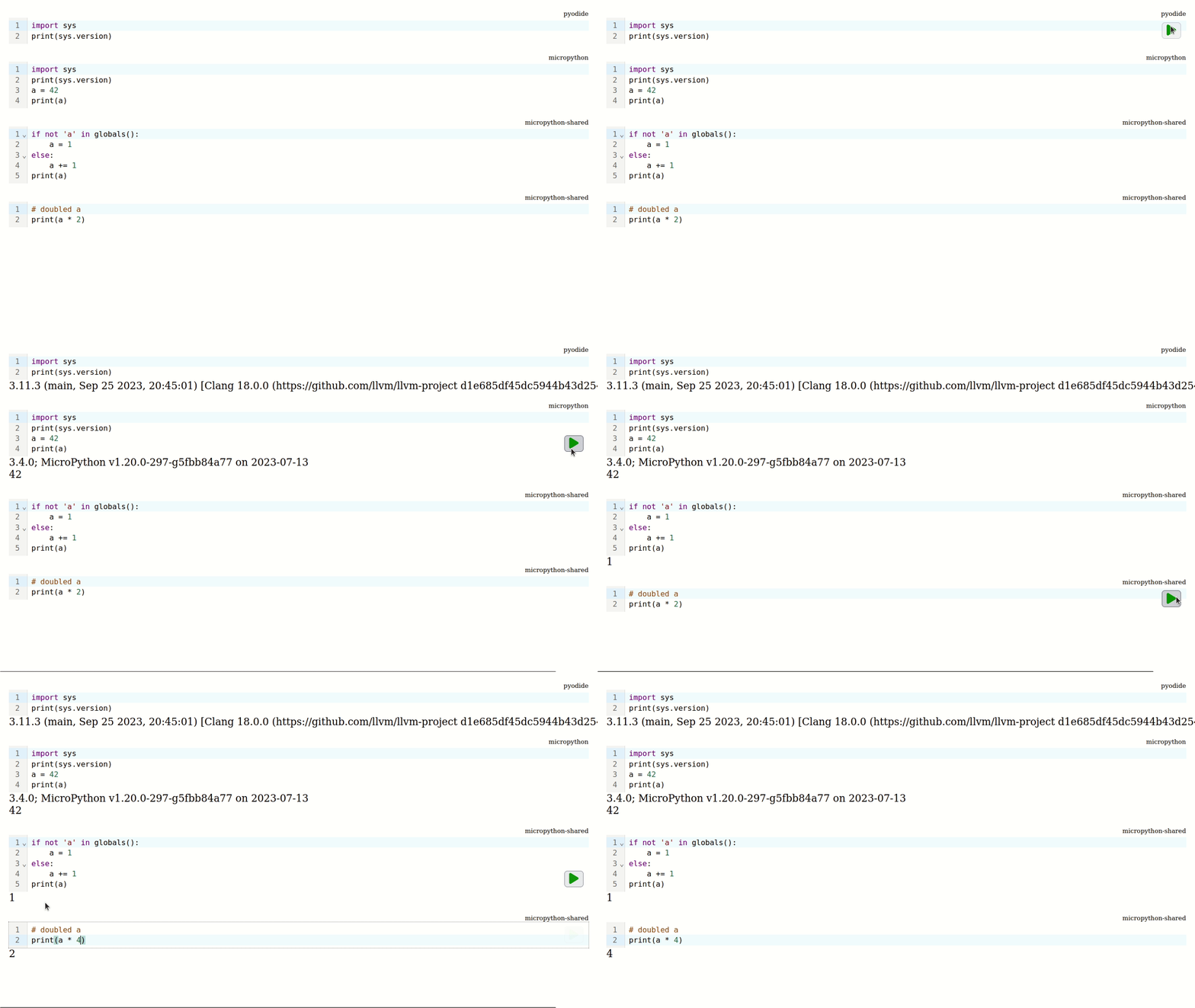
The interpreter loads only when the user clicks run, not when the page loads. This keeps initial page load fast, downloading the Python runtime only when needed.
Independent environments
Each editor runs in its own isolated environment by default. Variables and state don't leak between editors:
<script type="py-editor">
import sys
print(sys.version)
</script>
<script type="mpy-editor">
import sys
print(sys.version)
a = 42
print(a)
</script>
The first editor uses Pyodide, the second uses MicroPython. Each has
completely separate state. The variable a in the second editor doesn't
exist in the first.
Shared environments
Editors can share state by using the same interpreter and env attribute:
<script type="mpy-editor" env="shared">
if 'a' not in globals():
    a = 1
else:
    a += 1
print(a)
</script>

<script type="mpy-editor" env="shared">
# Accesses 'a' from the first editor.
print(a * 2)
</script>
Both editors share the "shared" environment. Variables defined in one
editor are accessible in the other. Run the first editor, then the
second, and you'll see the second editor can access the first editor's
variables.
The interpreter type and environment name appear in the top right corner of each editor, showing which environment it belongs to.
Reusing shared environments
When an application terminates an editor, the shared environment it belongs to is also terminated. Any other editors using that same environment stop working too.
To reuse that environment name and bootstrap everything from scratch, add the
env-override attribute to the script. This forces the editor to create a
fresh environment instead of reusing the terminated one:
<script type="mpy-editor" env="shared" env-override>
import sys
print(sys.version)
</script>
Setup editors
Sometimes you need boilerplate code that runs automatically without
cluttering the visible editor. The setup attribute handles this:
<script type="mpy-editor" env="classroom" setup>
# This code runs automatically but isn't visible.
import math
pi = math.pi
</script>

<script type="mpy-editor" env="classroom">
# This editor is visible. The setup code already ran.
print(f"Pi is approximately {pi:.2f}")
</script>
Setup editors don't appear on the page but execute before any other editors in the same environment. This is particularly useful for educational contexts where you want students to focus on specific code without seeing all the scaffolding.
Stopping execution
Code running in an editor sometimes needs to be stopped - perhaps it's stuck in an infinite loop or taking too long. Hover over a running editor to reveal the stop button where the run button was. Click it, confirm, and the code stops executing:
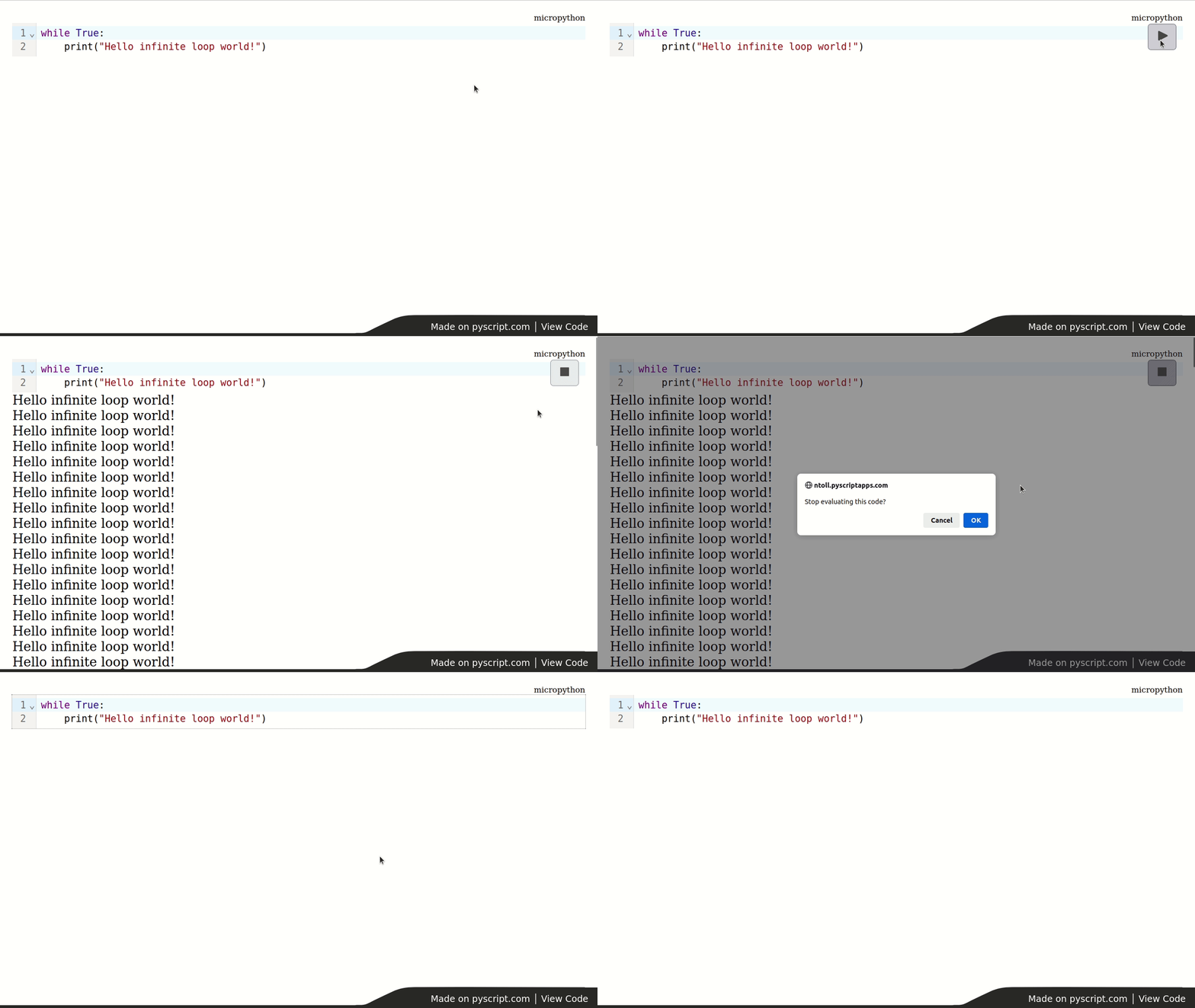
The editor refreshes, letting you fix the problem and run again.
Keyboard shortcuts
Run code without clicking the button using keyboard shortcuts. Press
Ctrl+Enter (or Cmd+Enter on Mac, or Shift+Enter) to execute the
code. This speeds up the edit-run-debug cycle.
Programmatic access
Access and control editors from Python code using the code property:
from pyscript import document

# Get reference to an editor.
editor = document.querySelector('#my-editor')

# Read the current code.
print(editor.code)

# Update the code.
editor.code = """
a = 1
b = 2
print(a + b)
"""

# Execute code programmatically.
editor.process(editor.code)
This lets you build interfaces that modify or execute editor content based on user actions elsewhere on the page.
Custom rendering location
By default, editors render where their script tag appears. Use the
target attribute to render elsewhere:
<script type="mpy-editor" target="editor-container">
import sys
print(sys.version)
</script>

<div id="editor-container"></div>
The editor appears inside the target element rather than replacing the script tag. This gives you control over page layout.
Configuration
Editors require explicit configuration through the config attribute.
They don't use <py-config> or <mpy-config> tags:
<script type="py-editor" config='{"packages": ["numpy"]}'>
import numpy as np
print(np.array([1, 2, 3]))
</script>
If using setup editors, only the setup editor needs configuration. All subsequent editors in the same environment share that configuration.
Overriding execution
Advanced use cases may require custom execution behaviour. Override the
editor's handleEvent method:
<script type="mpy-editor" id="custom">
print(6 * 7)
</script>

<script type="mpy">
from pyscript import document


def handle_event(event):
    # Log the code instead of running it.
    print(event.code)
    # Return False to prevent default execution.
    return False


editor = document.getElementById("custom")
editor.handleEvent = handle_event
</script>
This technique enables scenarios like executing code on connected hardware via USB serial connections to microcontrollers.
Editor versus terminal
The editor and terminal both provide interactive Python experiences but serve different purposes and work differently.
The editor isolates code in workers and evaluates everything when you click run. It's designed for writing complete programs, editing freely, and running when ready. The clear separation between code and output makes it ideal for tutorials and demonstrations.
The terminal evaluates code line by line as you type, like a traditional
REPL. It supports blocking operations like input() in workers and
provides an XTerm.js interface. The terminal feels more like a
traditional Python session.
Use editors when building coding tutorials, creating interactive
demonstrations, or letting users write and execute complete programs.
Use terminals when providing a REPL experience, showing command-line
style interaction, or needing input() support.
Accessibility considerations
The editor traps the tab key for code indentation rather than moving
focus. This matches standard code editor behaviour but has accessibility
implications.
We follow
CodeMirror's accessibility guidance:
press Esc before Tab to move focus to the next element. Otherwise,
Tab indents code.
This provides both standard coding behaviour and an escape hatch for keyboard navigation.
Customize editors
PyScript lets you customize an editor's height, as well as the icons used for its run and stop buttons.
Use the rows attribute, set to a positive integer, to control the editor's
height:
<script type="mpy-editor" rows="5">
import sys
print(sys.version)
</script>
By default, an editor stretches to fit all of its code. When you set rows,
the editor instead has a minimum height of 3 rows and a maximum height of the
number of rows you specify, scrolling when the code exceeds that height.
To change the run and stop buttons, pass SVG strings through the data-run
and data-stop attributes:
<script type="mpy-editor" data-run="<svg>...</svg>" data-stop="<svg>...</svg>">
print("Hello, world!")
</script>
These are dataset attributes because setting them in JavaScript via
script.dataset.run = '...' and script.dataset.stop = '...' automatically
escapes the SVG content. This ensures that even complex strings won't break
the layout.
Finally, the output attribute accepts the id of an existing element. When
set, the editor writes its output to that element instead of creating a new
output container of its own:
<script type="mpy-editor" output="output-container">
print("This appears in #output-container.")
</script>

<div id="output-container"></div>
The onbeforerun hook
The onbeforerun attribute can contain Python code that runs immediately
before the editor's code (or its setup) executes.
Use this hook for a runtime "one-liner" that prepares the output. For example,
set onbeforerun to display('', append=False) to clear any previously
displayed output before each run:
<script type="mpy-editor" onbeforerun="display('', append=False)">
print("This output replaces whatever was shown before.")
</script>
What's next
Now that you understand the Python editor, explore these related topics:
Terminal - Use the alternative REPL-style interface for interactive Python sessions.
PyGame - Use PyGame-CE with PyScript, covering the differences from traditional PyGame development and techniques for making games work well in the browser.
PyScript in JavaScript - drive PyScript from the world JavaScript.
Plugins - Understand the plugin system, lifecycle hooks, and how to write plugins that integrate with PyScript.